Flexmapping lists / SAP mara
Flexmapping lists / SAP mara
The Flex Mapping List feature allows you to write SQL queries to perform operations on database tables. In this chapter, we will explain how to create, configure and assign a FlexMapping for execution.
Flex mapping configuration
Creation of Flex Mapping Lists :
To create a Flex mapping List :
- Click on the 'Advanced config' section on the left, then navigate to the 'Flex Mapping List' section.
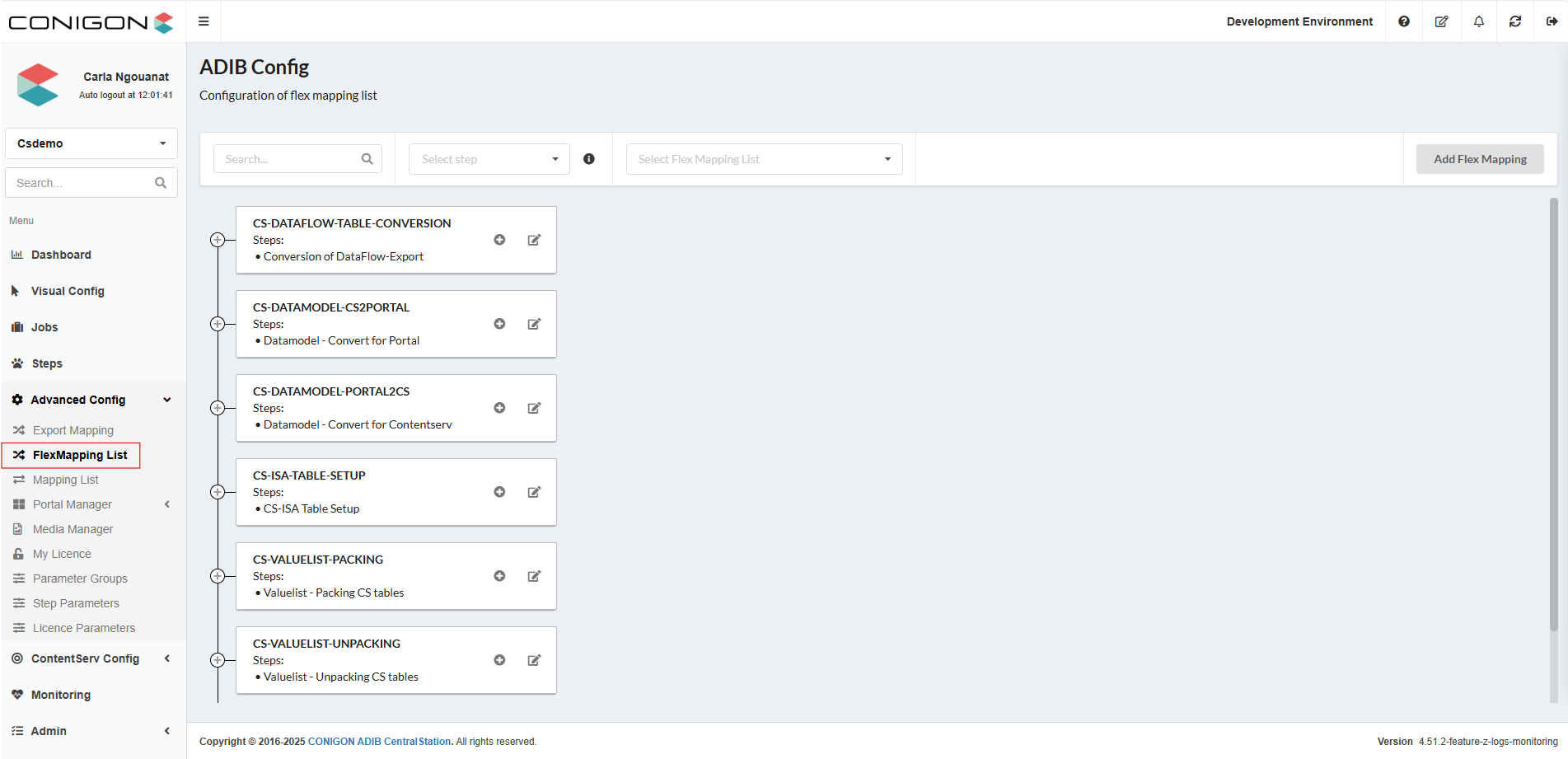
- Next, click 'Add Flex Mapping' in the top right-hand corner of the page to create a new Flex mapping. The following window will then appear:
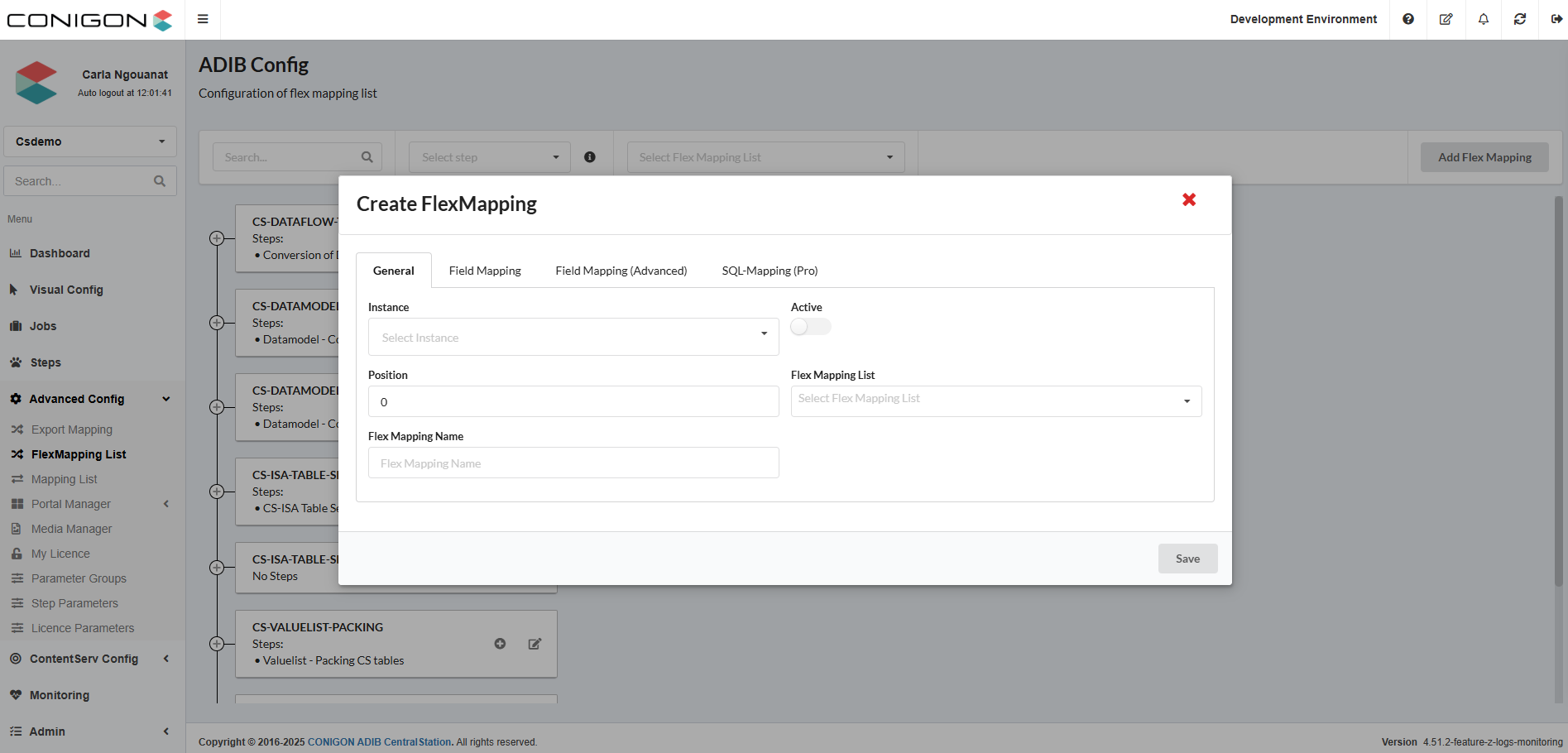
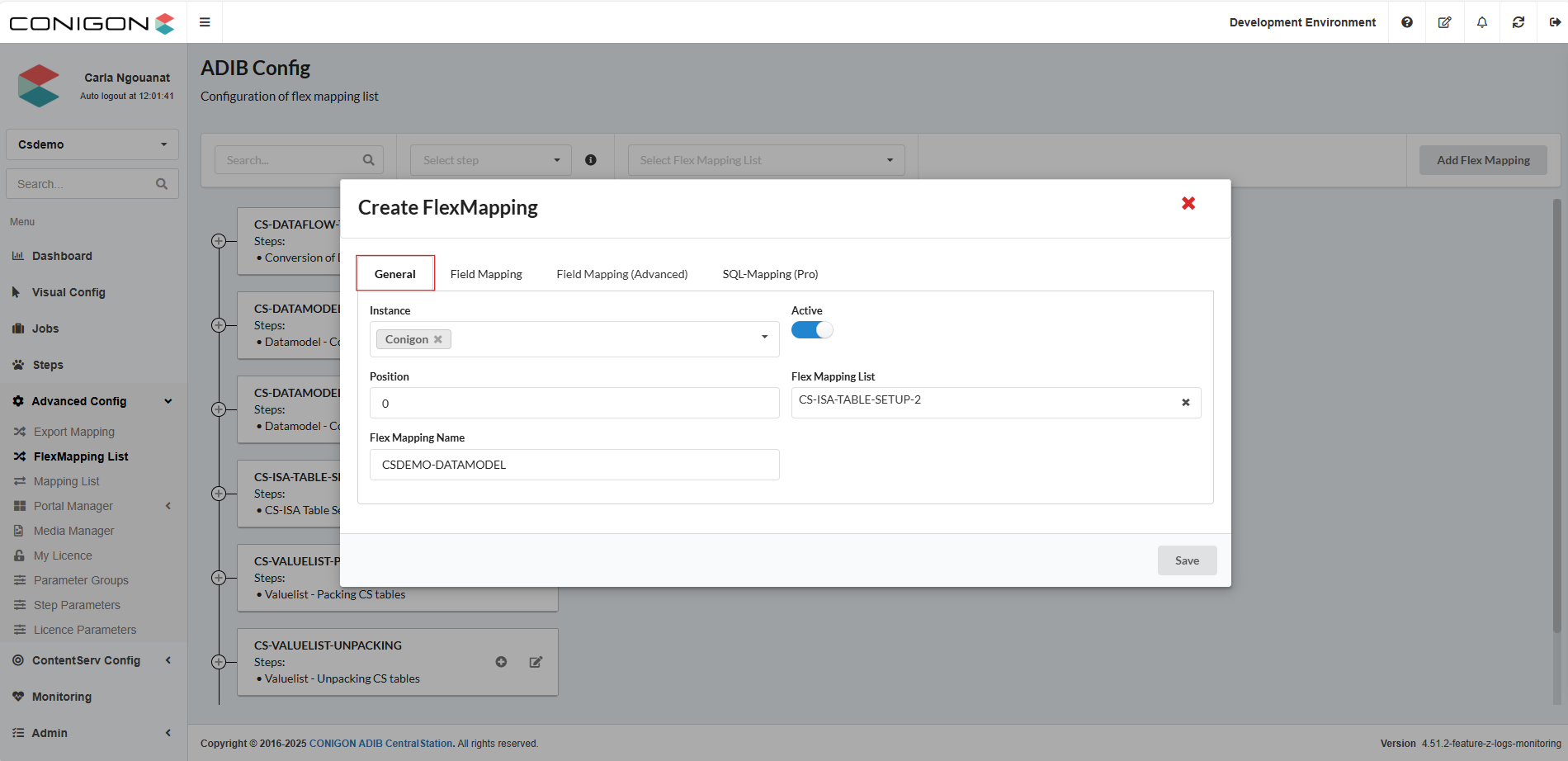
- Then, complete these fields in the General tab.
- Instance : select the IntegrationClient that you want to use.
- Flex Mapping Name : enter the name of the flex mapping
- Active : must be activated to appear as an option in the export mapping list when assigning it to a step. It also needs to be activated within export mappings to be considered in the export mapping list.
- Flex Mapping List : Do not fill this in if you want to create an flex mapping. However, if you want to create an flexmapping list, you must fill it with the same value as the Flex Mapping Name.The following image shows the process of creating an flex mapping list.
- If you use SQL-Mapping(Pro), the Tabs Field Mapping and Field Mapping (Advanced) are not necessary. Go directly to the SQL-Mapping (Pro) section, which allows you to enter the SQL request you want. You just need to know the SQL commands to do this; the only difference with classic requests is that, instead of putting a semicolon (;) at the end of each command, you have to put two dollar signs($$). Only the last semi-colon remains unchanged.
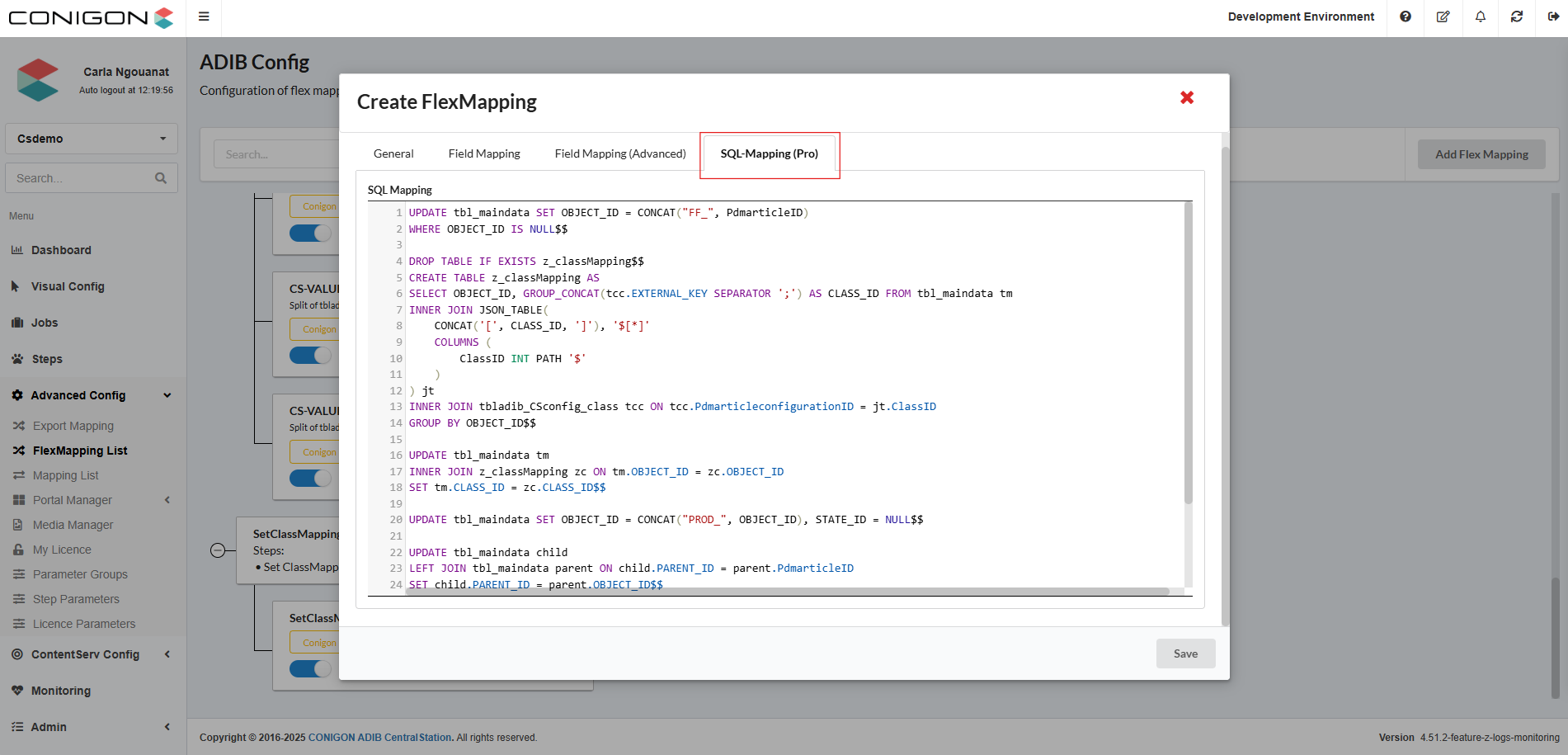
- After writing the requests save them.
Assignment of an Flex Mapping List to a Step
For the flex mapping list configuration to be executed, it is necessary to assign it to a step. It is important to note that the step must have SAP-Mara Import as Web Service. To do this :
- If you have already created your job and steps, go to the steps section and select on the step you want to add the flex mapping list and press edit on the top right side of the screen :
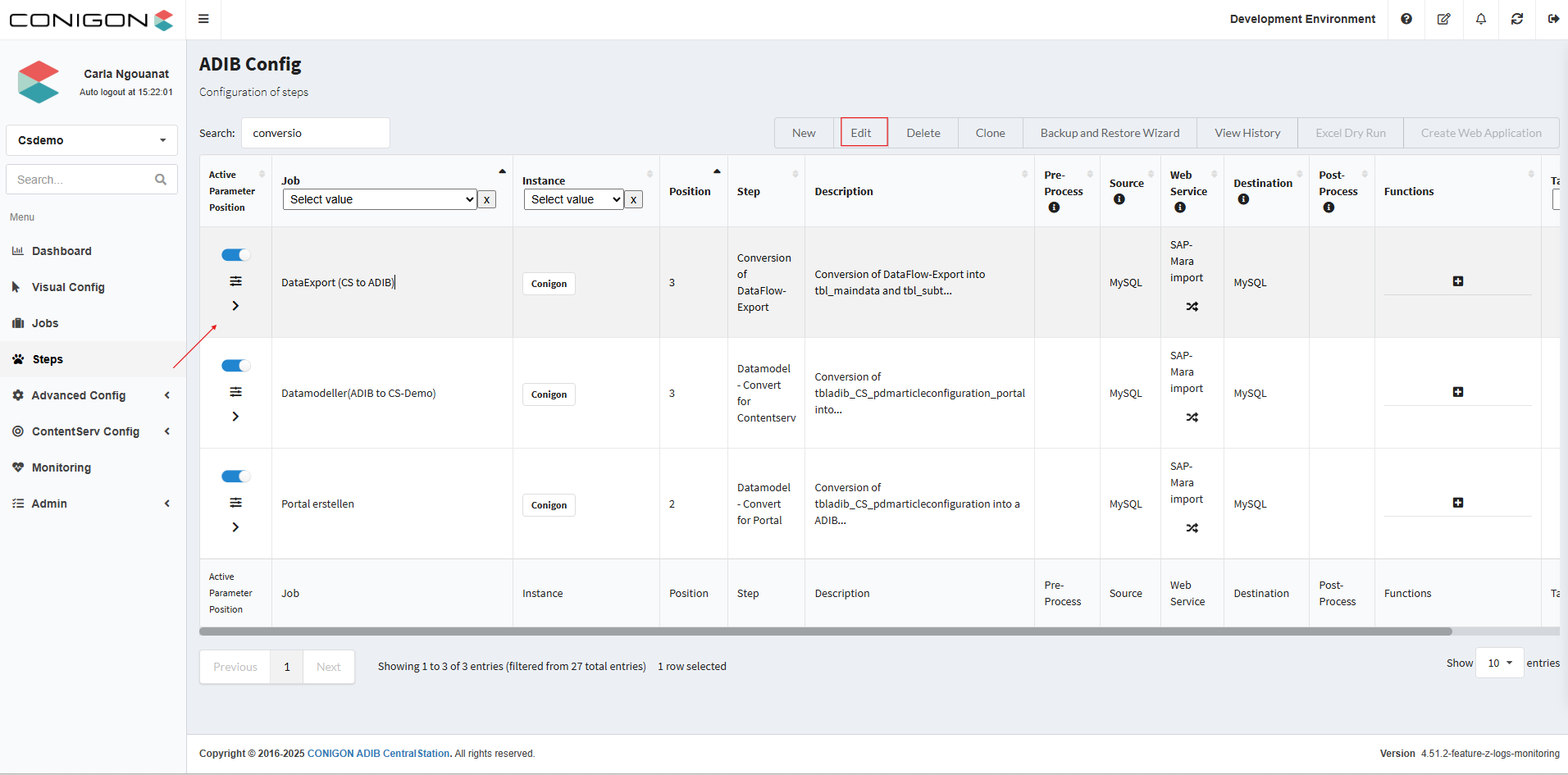
- Then, go the tab Other Information and click on the drop down menu Functions, and select your flex mapping list :
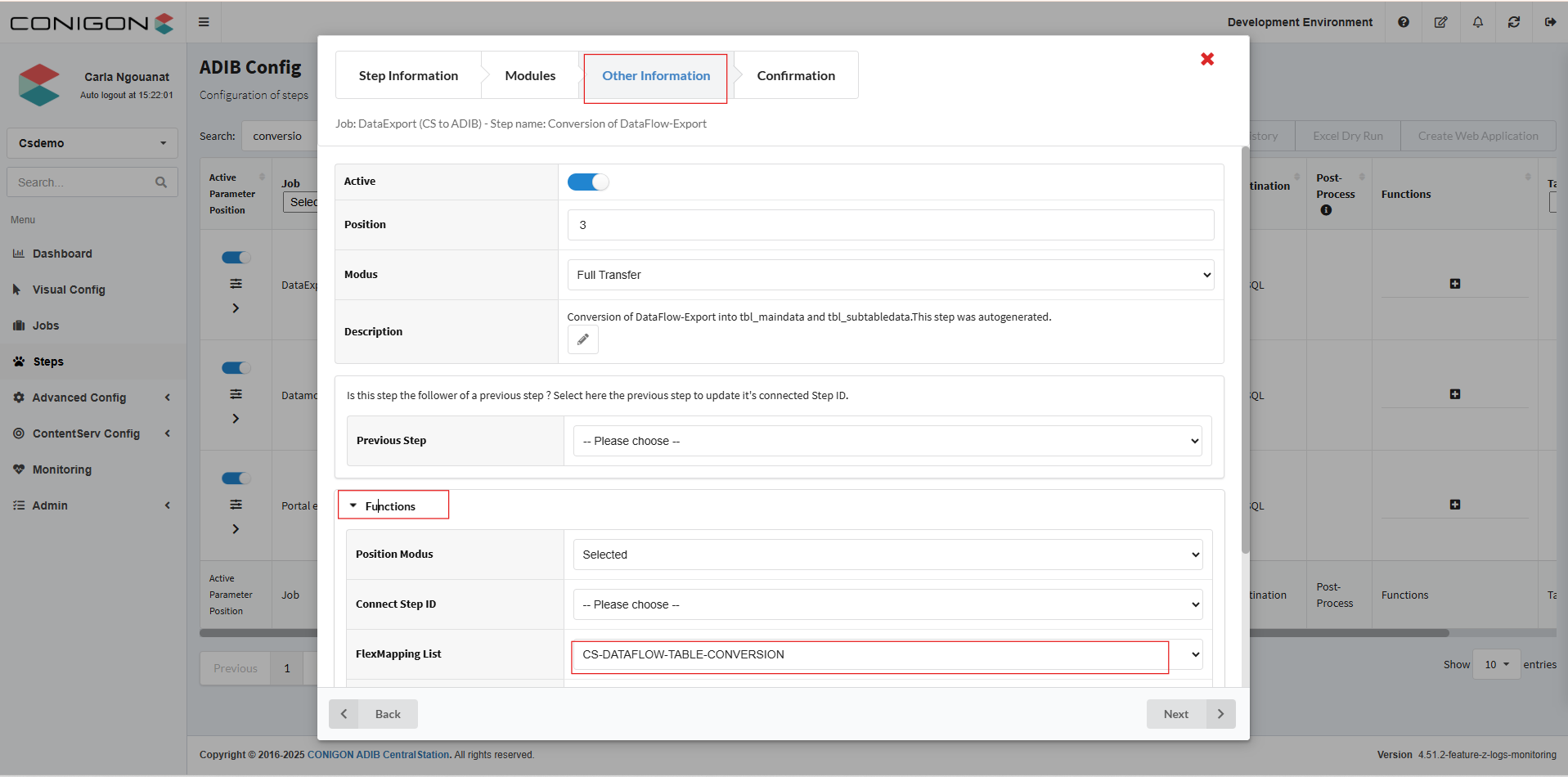
- At last, click on Next and then Save .