Cart
Cart
The Shopping Cart feature in the ADIB Portals allows users to conveniently collect and manage products they wish to purchase. This guide explains how to add items to your cart, view them, and manage your selections.
Adding Products to Your Cart
- Locate the Cart Button
Under each product’s information section, you will find the Cart button.
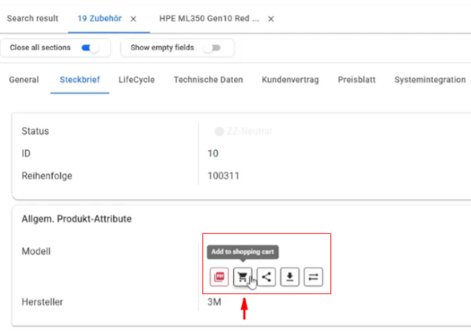
- Select Your Product Choose the desired product and click on the Cart button.
-
Configure Your Selection Clicking the Cart button opens a wizard that allows you to:
- View product information (including product label and price).
- Specify the quantity of the product you wish to add.
- Add the product to your shopping cart.
- Close the wizard if you don’t wish to proceed.
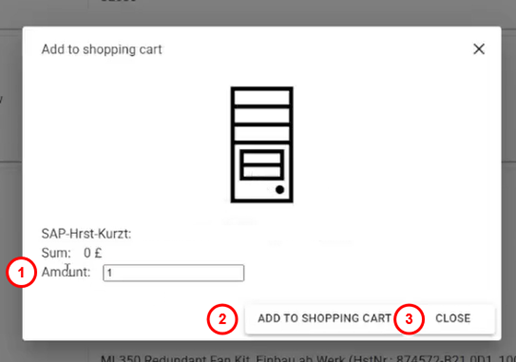 Confirm Your Selection
Once added, your cart will automatically update to show the total number of items currently stored.
Viewing and Managing Your Cart
- Access the Shopping Cart Click on your Profile Icon at the top-right corner of the screen to open a dropdown menu. From there, select Shopping Cart.
- Manage Your Cart Contents
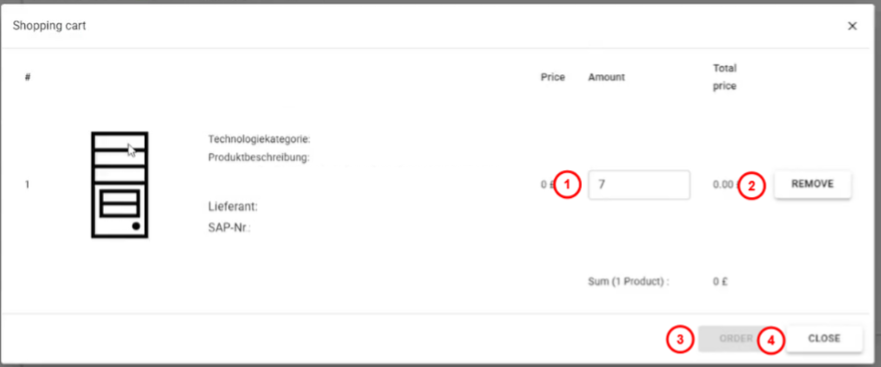
The Shopping Cart Window displays all the products you’ve added, along with their details.
Within this window, you can:
- Edit the quantity of items.
- Remove items from your cart.
- Place an order for the selected products.
- Close the window to return to browsing.
Tips
- You can open the wizard at any time to modify product quantities or remove items before ordering.
- The cart icon will display the total count of products currently in your cart.