Download-List
Download-List
From the ADIB portals, you can download products, for example in the form of an Excel file. To do this, add the products you want to download to the "Download List".
The ADIB portals have several “lists” whose usage and population are largely identical:
- The user selects products from the search results list and adds them to the desired list (in this case, the comparison list)
- In the “TABLE” and “FLEXIBLE” views, multiple products within the table can be checked—and by right-clicking on the burger menu in the header, added to the (download) list via the column with the buttons (see illustration)
- Alternatively, products can also be added individually to the download list
- After clicking the “Compare” icon, a confirmation appears in the upper right area indicating that the product(s) have been added

- Next, go to the Download List via the user menu on the right side
- There you see all products added to the list. You have the option to freely determine which fields/attributes to export.
- For this, select a template in the lower-left corner, which you can edit—and then save as a new template.

- Editing the template is done by simple drag & drop of fields between the available fields (on the right) and the fields designated for export (on the left). In this interface you can also search or select/deselect all fields. The order of fields is respected.

- Afterwards, you see the defined fields for the selected products in the overview. From there, start the export.
- With regard to further functionality, a distinction must be made between the two types of ADIB portals:
- ADIB Search Portal: you can only download the data
- ADIB Edit Portal: you can download the data, modify it in the Excel file, and then upload it back into the portal.
- For this, ensure that you have selected “Export for Import” if you want to edit the exported data and then import it back into the Edit Portal.
- The procedure for editing is described in detail in the “ADIB Edit Portal” chapter.
Download Options
In addition to selecting products and the attributes to display, you have the following format choices when downloading data from the ADIB portal:
- txt file
- Excel
- XML
- Docx

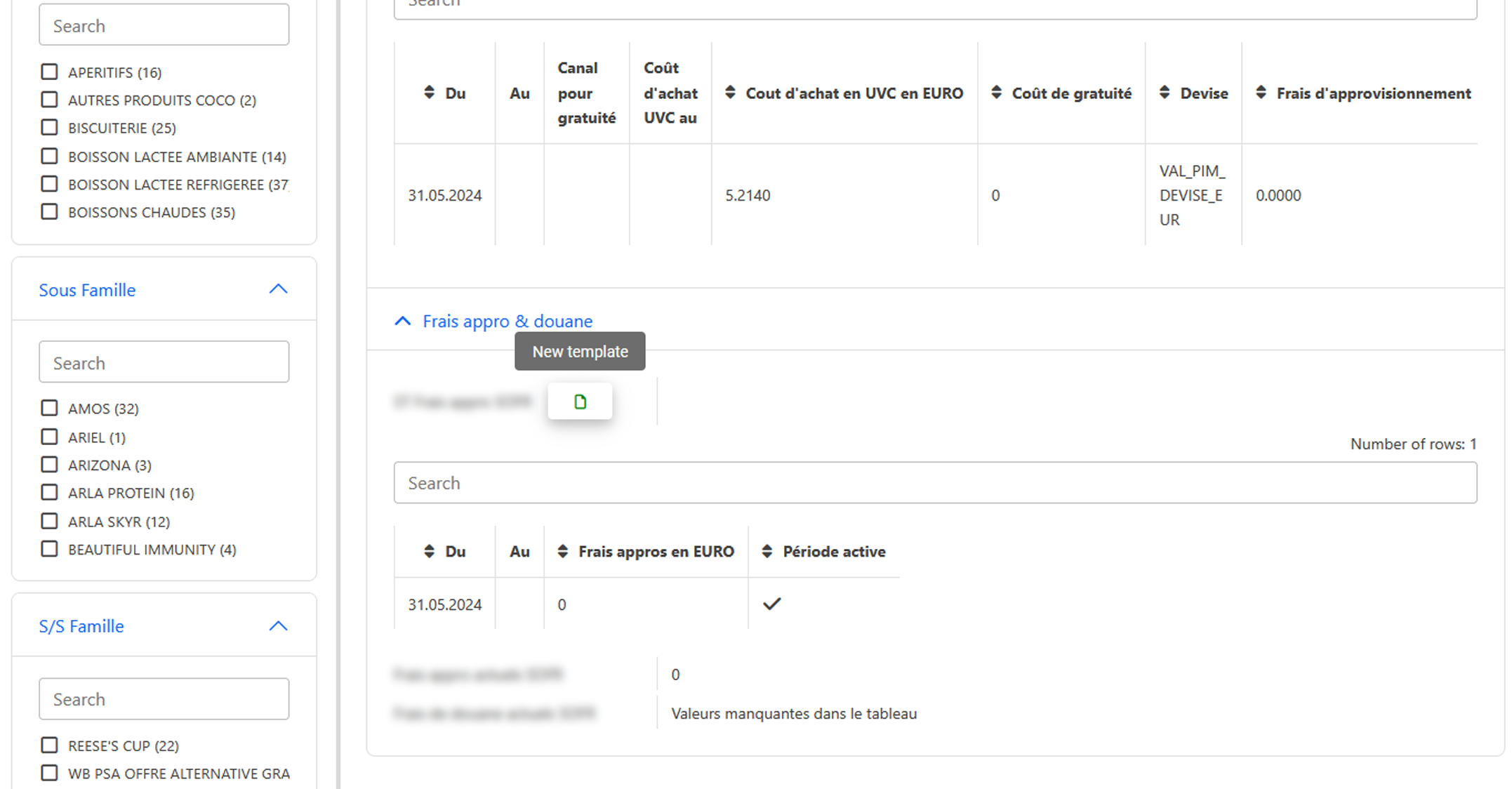
Subtable Templates
You also have the option to create a template for each subtable. For each subtable, each user can create exactly one template; this can be edited at any time via drag & drop and adjusted as often as needed. The order of fields is taken into account when modifying.
Advanced Configuration for Excel Templates with Subtables
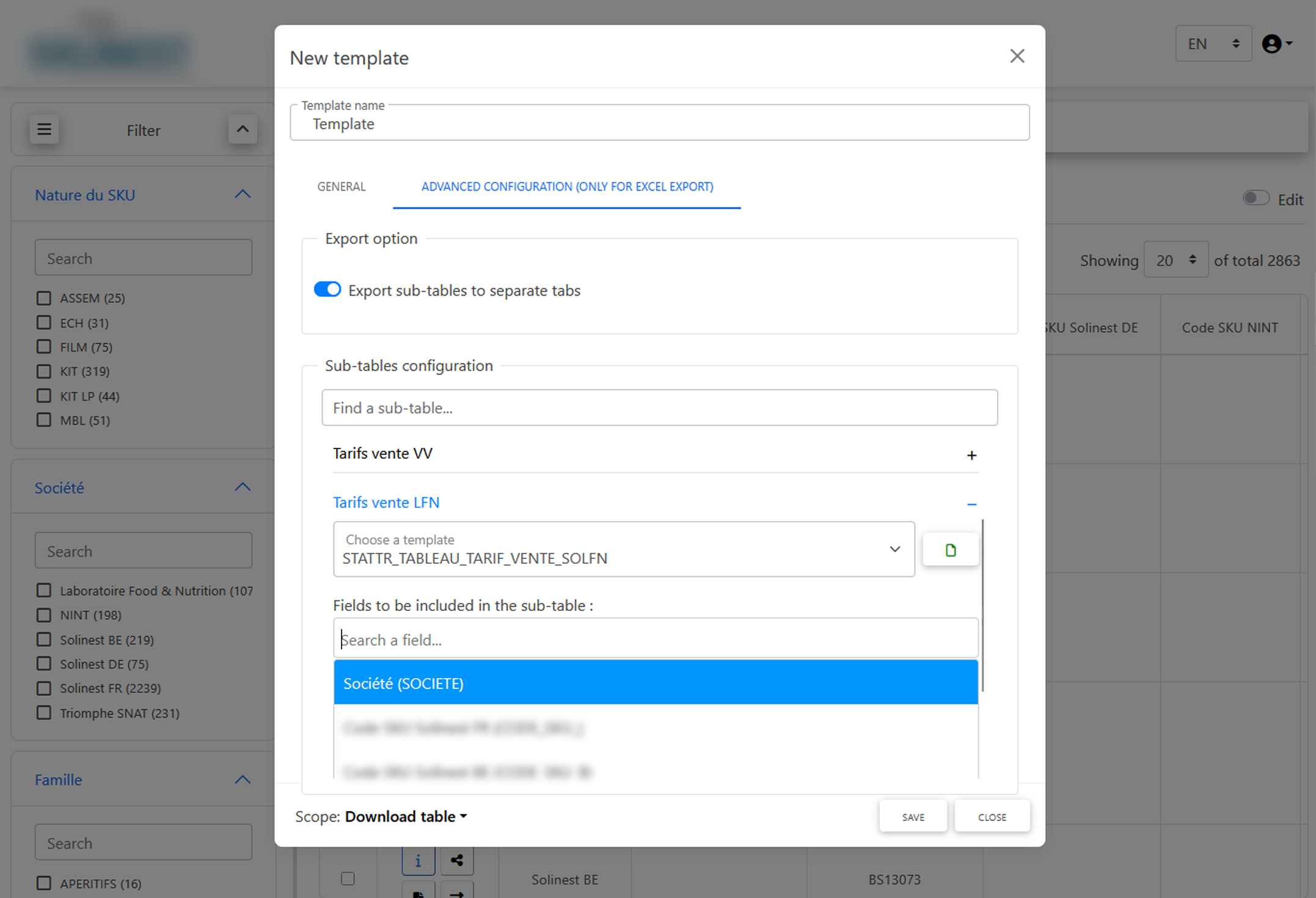
We offer flexible options for Excel export. The following settings are available only if you are using a template for Excel download and the template contains subtables among the selected fields:
- Separate worksheets: You can choose to have each subtable downloaded into a separate Excel worksheet.
- Template selection per subtable: You can decide whether to use a distinct template for each selected subtable. You then have the option to create or adjust the template for that subtable directly.
- Additional fields from the main table: You can add fields from the main table to each individual subtable, so that they are also included in the corresponding separate worksheet. These advanced configurations apply exclusively to Excel downloads and have no effect on other template types.