Management via the Portal Manager
Management via the Portal Manager
The portals within the PortalStation are configured via the ADIB CentralStation in the menu item ‘Advanced Config’ --> Portal Manager.
Here you can manage the portals you created earlier (using the ADIB Portal steps). You have the options shown in the following figure
- (1) PortalStation Settings: Here you can configure basic settings for the portal station, such as the logo, colours, etc.
- (2) User Management: Here you can manage users and user groups (see below).
- (3) Column visibility: By default, not all table columns are displayed. Use this option to show or hide columns in the administration view. Make sure the Instance column is enabled and that an instance is assigned to the portal; otherwise, the portal will not sync correctly or function as expected.
- (4) Active: Activates/deactivates a portal in the PortalStation.
- (5) Status:
- Green tick: The portal is active in the PortalStation with the configuration displayed here.
- Pending: The portal has been changed in terms of configuration, but the changes have not yet been applied by the PortalStation.
- (6) Name: Name of the portal
- This name is used as the name/title of the HTML application (visible in the browser)
- (7) Widget Heading: Title of the portal in the Portal Station (displayed below the image for the portal)
- (8) Widget Text: Short text for the portal (displayed below the ‘Widget heading’)
- (9) Widget image: Image for the portal in the portal station
- (10) Valid from: Defines the start time of the portal (can be left blank)
- (11) Valid until: Defines the end time of the portal (can be left blank)
- (12) Groups: Defines the user group(s) that have access to the portal
- If you leave this field blank, all users will have access to the portal – even without logging in.
- (13) Categories: Defines the category under which the portal is listed
- The name can also be used to define the position of the category within the portal station.
- A category with the name ‘5|Network’ therefore means: the category should be displayed in 5th place and has the name ‘Network’
- (14) Last Update: Time of the last change to the portal
- (15) Preview: Click on this icon to view the portal directly in a separate window
 \Image 64: Managing portals via the ‘Portal Manager’
To access additional features not shown by default in the table view, click the Column Visibility button (see item 3 above). These extra options are listed there and are not explained in the section above. For more details, refer to the image below.
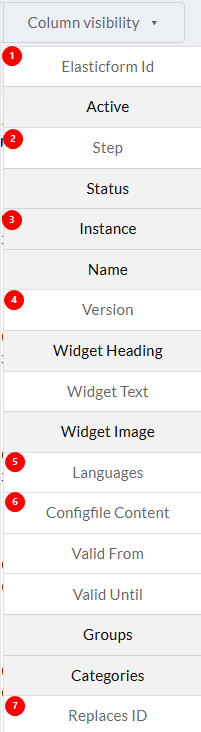
- (1) ElasticForm ID : refers to the elastic index ID associated with this portal.
- (2)Step : displays the steps associated with this portal.
- (3) Instance : Indicates the instance this portal is linked to.
- As mentioned earlier, ensure the Instance column is enabled and that an instance is assigned to the portal; otherwise, the portal will not sync correctly or function as expected.
- (4) Version : Shows the most recent version of the portal.
- (5) Languages : Lists the languages available for the portal.
- (6) Configfile Content : Displays the configuration file content associated with the portal.
- (7 ) Replaces ID : Allows you to specify a new ID to which the portal will redirect.
- This field also contains a list of previously used ElasticForm IDs. If a user opens a portal and the ID is found here, this portal will be displayed instead. When there is an outdated portal users can signal a portal with an asterisk (*) and all non existent portals will be redirected to the portal you marked with a asterisk symbol.
You can change the values by double-clicking on the corresponding field in the row of the portal you want to change. Examples:
- To create a new category\, double-click on the ‘Categories’ field and then enter a new name\, e.g. ‘8|Test’.
- IMPORTANT: If this category has already been created, it will appear in the drop-down list and you can select it.
- If it has not yet been created, you must confirm it by clicking once on the ‘Enter’ (or ‘Return’) key after entering the name.
- IMPORTANT: If this category has already been created, it will appear in the drop-down list and you can select it.
NOTE: As soon as you have changed something on a portal, the status changes from, for example, ‘Green tick’ to ‘Pending’. This indicates that changes have been made but not yet synchronised.
 \Image 65: Changes not yet synchronised in the top portal (‘Materials’)
Synchronising changes via the portal station
As mentioned above, the Portal Station works independently of the Central Station. However, the configuration is done in the Central Station. Therefore, changes to the configuration must be transferred to the Portal Station. To do this, proceed as follows
- Log in to the Portal Station as ‘admin’
- You also have the option of granting a user group the right to perform the synchronisation.
- Once you have done this, you will see the item ‘Update Data’ at the top of the user menu of the portal station
 \Image 66: ‘Update data’ as a menu item in the Portalstation user menu
After selecting the ‘Update data’ menu item, all portals will be synchronised, which may take some time. You can see that the synchronisation was successful in the ‘Portal Manager’ of the Centralstation if none of the portals have the status ‘Pending’.
NOTE: Please note that you may need to reload the ‘Portal Management’ page to see the change in status.
 \Image 67: The changes to the top portal (‘Materials’) have now been synchronised.