Master and Satellite Portals
Master and Satellite Portal Configuration Guide
Overview
The Supplier Portal setup consists of three main components that work together to manage and synchronize product data between systems:
- Master Portal
- Serves as the central hub for communication.
- Receives product data directly from Contentserv.
- Distributes this data to one or more Satellite (Supplier) Portals.
- There is only one Master Portal in the system.
- Satellite (Supplier) Portals
- Multiple satellite portals can be configured.
- They do not communicate directly with Contentserv.
- Instead, all data passes through the Master Portal.
- Contentserv
- A PIM/DAM system responsible for storing and managing product and digital asset data.
- Provides product information to the Master Portal.
Configuration of Master and Satellite Portals
With ADIB-portals, you can seamlessly transfer data between your applications and visualize it through an intuitive web application, making data management effortless.
![]() Location of master satellite portal jobs
Location of master satellite portal jobs
Location of the Master Satellite Portal is easily accessed and configured within the visual configuration section of ADIB.
- In the visual configuration section of ADIB, you can view the Master and Satellite Portal jobs. You can see if this job is active or inactive, and by clicking on the menu button, you can see details into this job.
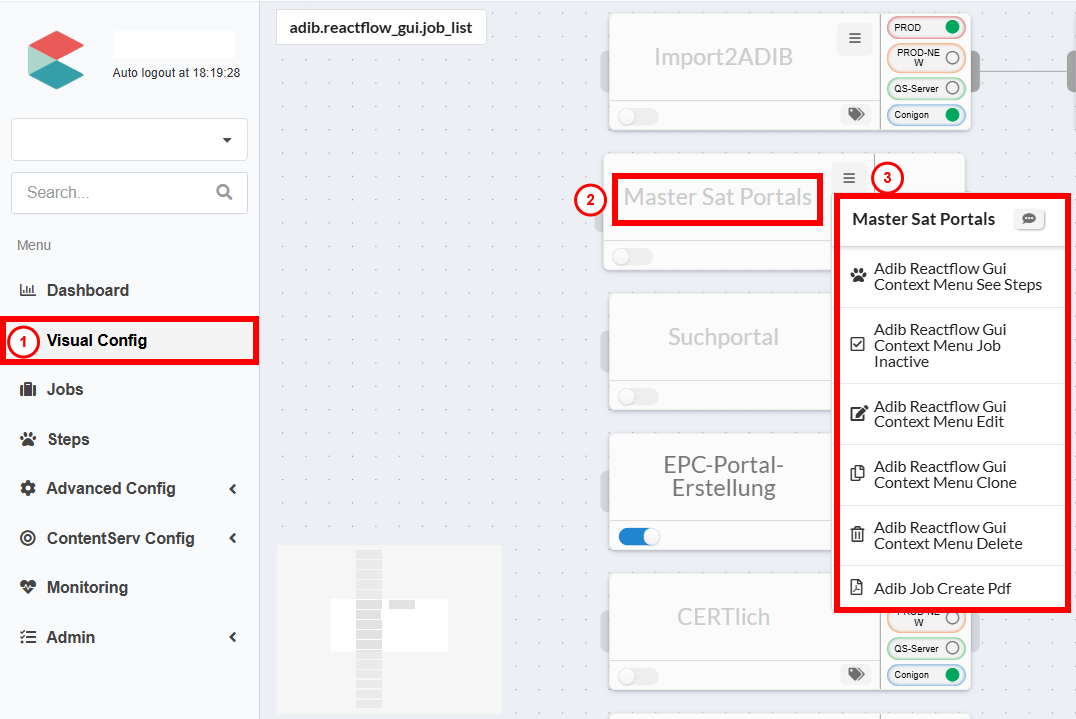
- By double-clicking on these jobs, you can access the two steps assigned to each.
- Right-clicking on a step (e.g., the Master Portal Test step) opens a dropdown menu with several actions: view positions, insert all known fields, deactivate the step, edit the step, clone, delete, or create a web application.
Launching and Monitoring of a Master and Satellite Portals Jobs
In ADIB, a "job" is a collection of related application integration tasks, referred to as "steps." Each step is logically structured and sequenced within a job to form a cohesive workflow. These jobs can handle a variety of actions, such as creating a portal, regularly populating it, or transferring data between systems—like from your ERP to your PIM or from your PIM to your website. With ADIB-Jobs, most data transfers can be easily configured and conveniently monitored in one central location! Let’s take a look at how to launch and monitor Master-Satellite Portal Jobs.
Launching a job in ADIB - Getting Product Information from Contentserv
- Navigate to the ‘jobs’ section of the application located on the left-hand side of the browser.
- Toggle the activation button to activate the Master Satellite Job (named ‘Master-Sat Portals’).
- Once the job has finished in ADIB it is necessary to continue the line of communication and send the new products from the master portal to the satellite portals.
- Type in the Direct Start column the instance you wish to run this job on.
- You will know when a job is completed because under monitoring the job will turn green (see monitoring section for more details).
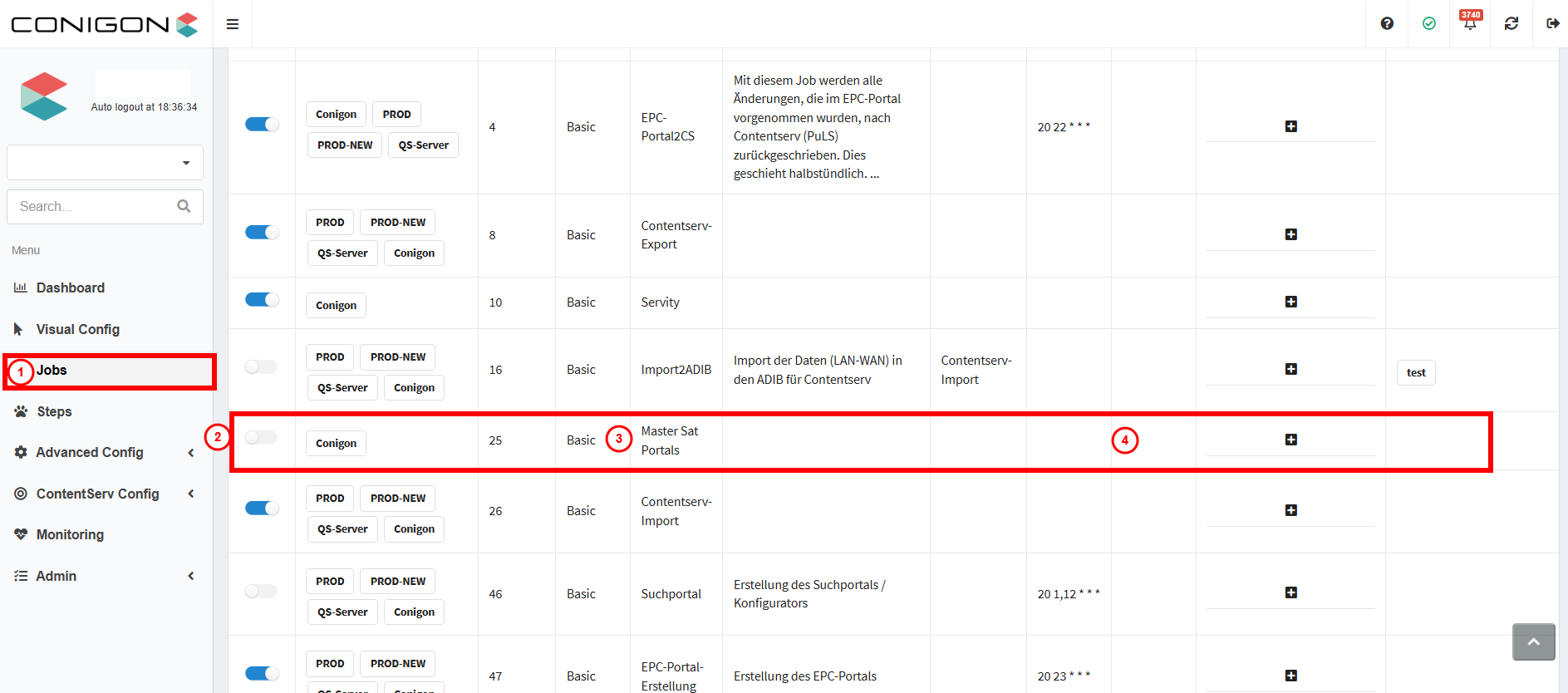
Launching Product information from Master Portal to Satellite Portal
- Once the job has finished in ADIB it is necessary to continue the line of communication and send data from the master portal to the satellite portals. Changes made and sent from the master portal to the satellite portals will not be reflected in the final master data.
- Go to the master portal and then toggle the button labelled ‘bearbeiten’ and press on ‘no data.’
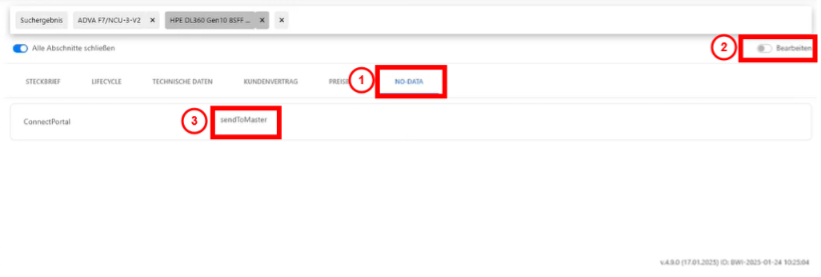
- Next under connect Portal press on the drop-down menu to select ‘Send to Satellite Portal Test.’
- Once you are done you can save your changes by pressing the save changes button.
Monitoring Changes
- A drop-down button on the top right side of the screen allows for monitoring of the job in the master portal. Select ‘edit logs’ here for more information.
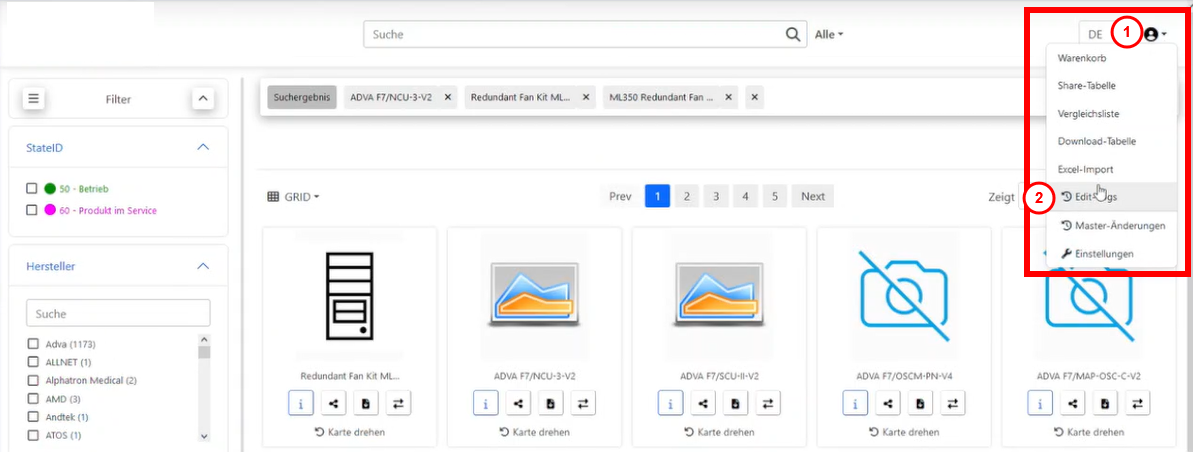
- From the ‘edit logs’ window we can see changes that have been made by pressing on the right-hand button. Here we can see the documents sent (via the label column) and the document ID (via the ID column). You can see the old value, and the new value, and you can accept the changes.
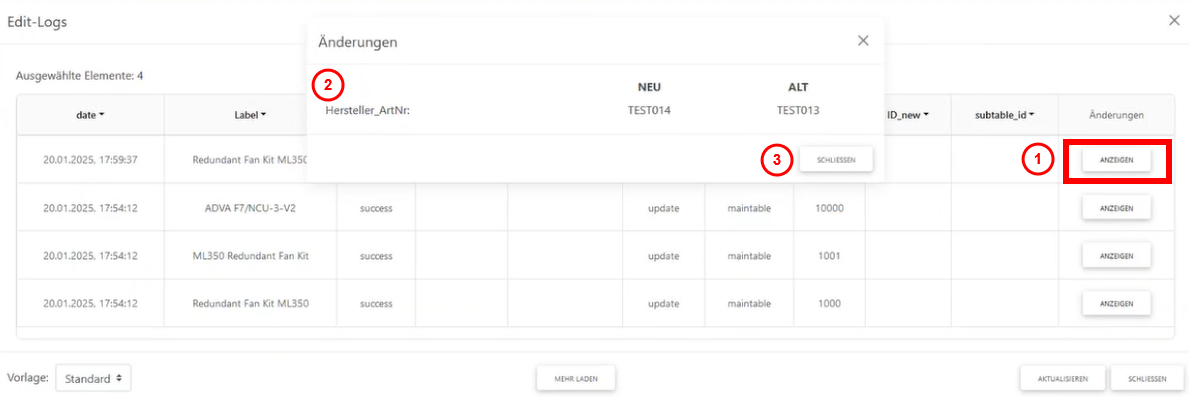
- After this step has been completed it is necessary to re-run the job in ADIB. Navigate back to monitoring section of the ADIB application located on the left-hand side of the screen. Click on the job that just ran to pull up a detailed window.
- Press on ‘restart job.’ This will send the data from the satellite to the master portal.
- Once this exchange is finished the master portal will receive a change notification message in the top right corner of the screen.
- Open this notification window, press select the changes and accept these changes.
- Now these changes from the Satellite portal will be reflected in the edit log window on the Master Portal.
- Now restart the job once more in order to send these changes from the Master Portal to Contentserv. Once this final job finishes changes will be reflected in Contentserv.
Monitoring the job in ADIB
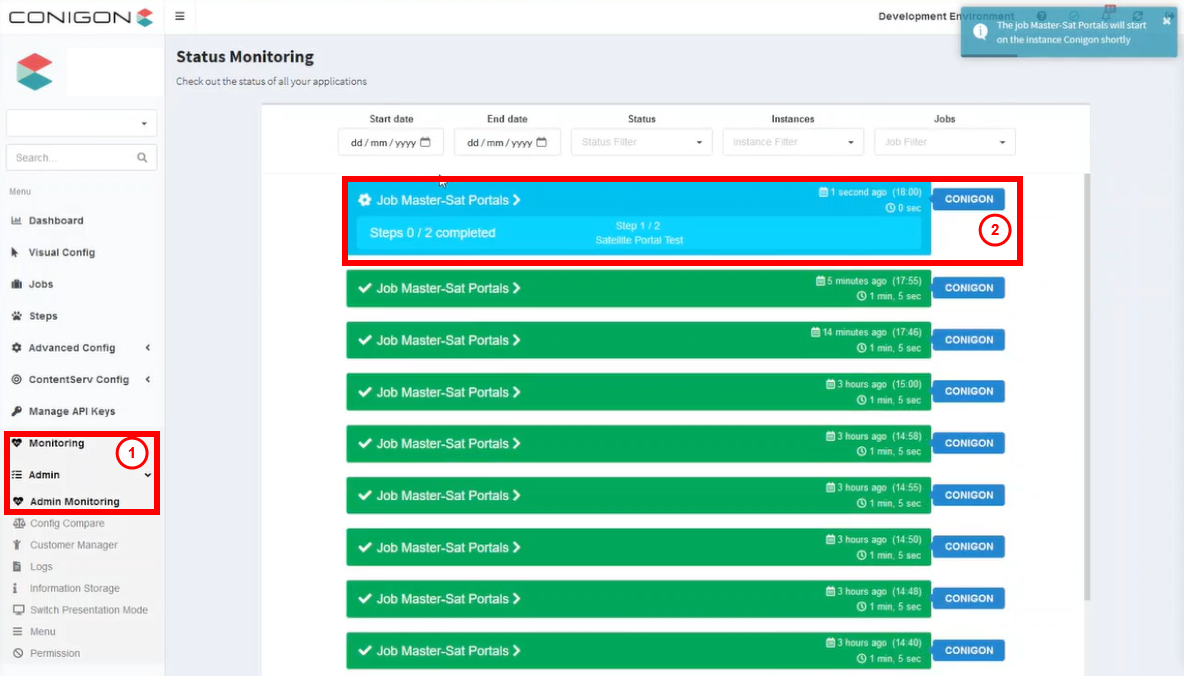
After this has been done the job is officially running. With ADIB monitoring functions are easy and efficient. To Monitor a job:
- Go to the Monitoring section of the application.
- Key information shown - steps that have been completed and the timing of the job.
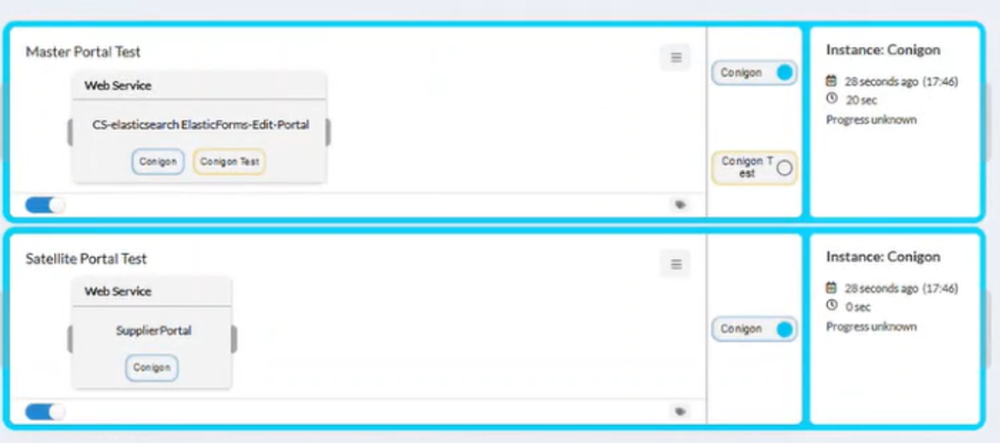
- Similarly the process of the job can be monitored from the visual configuration location. The steps will change color to indicate that a job is in progress.
Job reporting and information
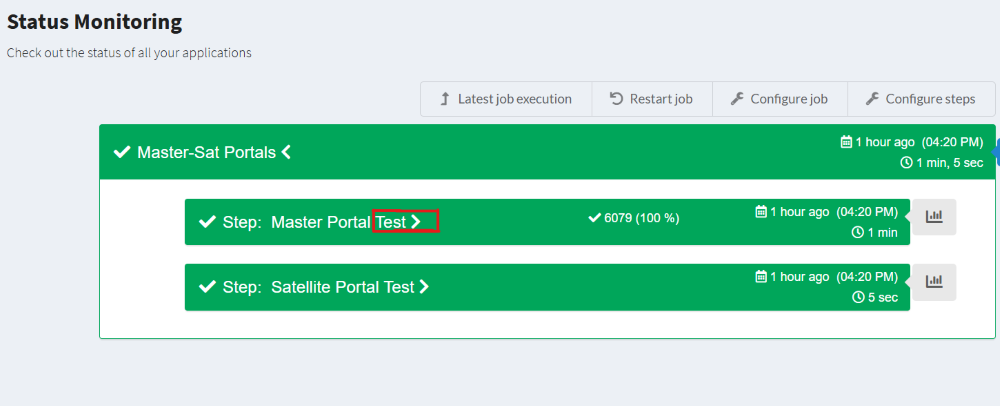
Once the job has been completed it will change to green. Further information about the job execution can be found under status monitoring. To access status monitoring and reporting:
- Clicking on the job brings up a detailed information about the job.
- By pressing on the drop greater than sign (>) you are able to see furthered information about each step of the job.
Conclusion
In summary, this component ensures seamless communication and data flow between Contentserv, the master portal, and satellite portals. By centralizing data exchange through the master portal, it enables efficient product and digital asset management while maintaining clear roles and responsibilities for each element in the system. This structured approach optimizes integration and ensures consistency across all connected portals.